Report an issue
Tell us when something isn't working right.
Overview
If something goes wrong in Lungoor Notes, you can report it straight from the app. To open it, go to Settings and click Report an issue.
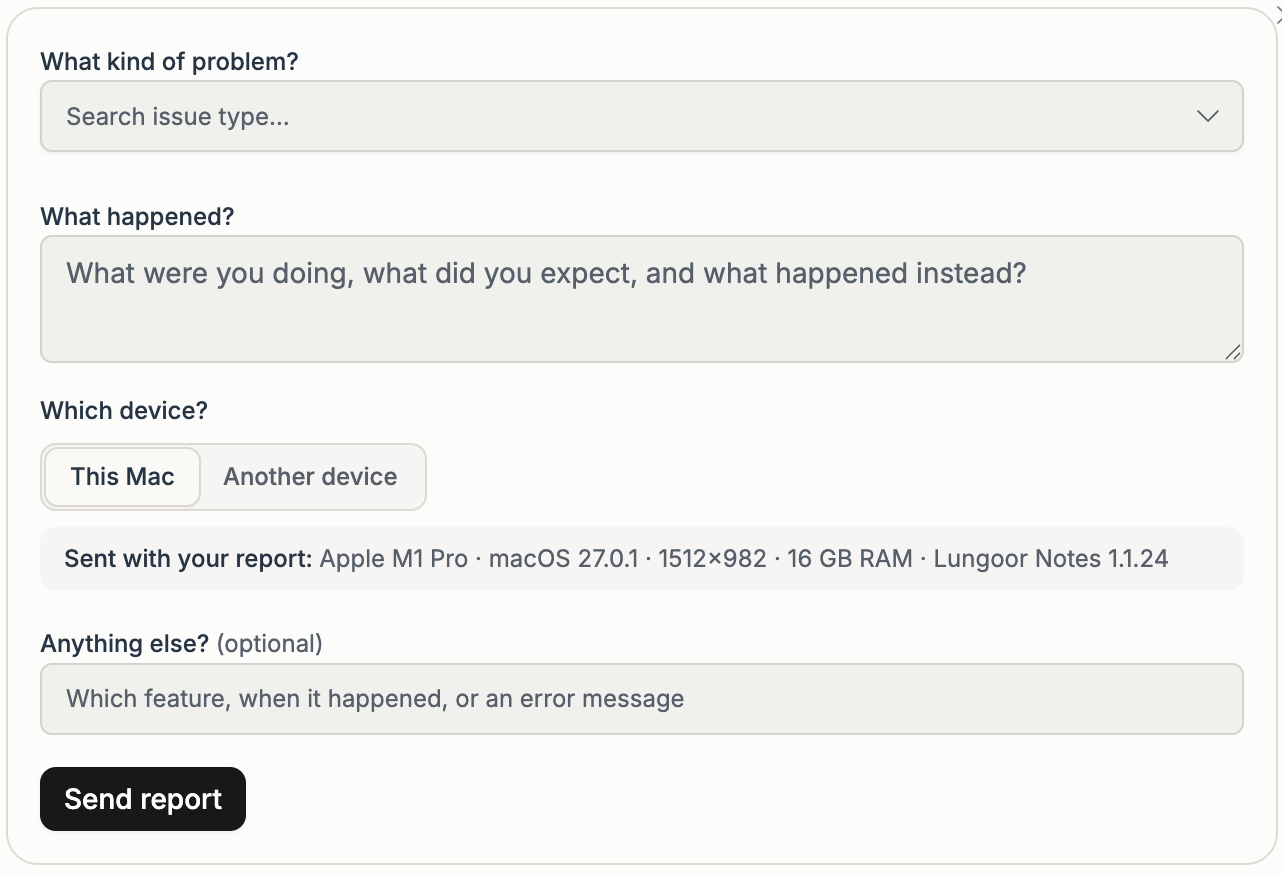
Sending a Report
1. Pick the kind of problem
Under What kind of problem?, search for and choose the issue type. See the list of issue types below.
2. Describe what happened
Under What happened?, write what you were doing, what you expected, and what happened instead.
3. Choose the device
Under Which device?, pick This Mac or Another device.
4. Add anything else (optional)
Add any extra details - for example, which feature, when it happened, or an error message.
5. Click Send report
Your report is sent to the Lungoor team.
Issue Types
| Issue type | Use it for |
|---|---|
| Folder problem | Organizing notes into folders, moving, or folder sync issues |
| Share problem | Sharing notes, permissions, or Shared with me access problems |
| Bug or crash | Something broke, froze, or threw an error |
| Transcript problem | Missing words, wrong speaker, or poor transcript quality |
| Summary problem | Incorrect, incomplete, or made-up summary content |
| Audio / microphone | Mic capture, meeting audio, or transcription input issues |
| UI / usability | Confusing layout, broken flow, or hard-to-find controls |
| Slow or performance | Lag, slow generation, or high resource usage |
| Login or signup | Can't sign in, sign up, or stay logged in |
| Search problem | Finding notes, people, or search results not showing up |
| Something else | Anything that doesn't fit the categories above |
Device Details
This Mac
When you pick This Mac, some basic details about your Mac are sent with your report automatically, so we can find the problem faster:
- Your Mac's chip - for example, Apple M1 Pro
- Your macOS version
- Your screen size
- How much memory (RAM) your Mac has
- Your Lungoor Notes version
You can see these details on the form before you send it.
Another device
If the problem happened on a different device, pick Another device and fill in its details:
- Device name or model - for example, MacBook Pro 14 or Windows laptop (required)
- Operating system - for example, macOS 15 or Windows 11 (required)
- Model - for example, M4 Pro (optional)
- Architecture - for example, arm64 or x64 (optional)
- Screen resolution - for example, 1920×1080 (optional)
Tips
- Pick the issue type that fits best, so your report reaches the right person faster
- Be as clear as you can under What happened? - it helps us fix the problem faster
- If you saw an error message, copy it into Anything else?