Home
Your command center for everything Lungoor Notes.
Overview
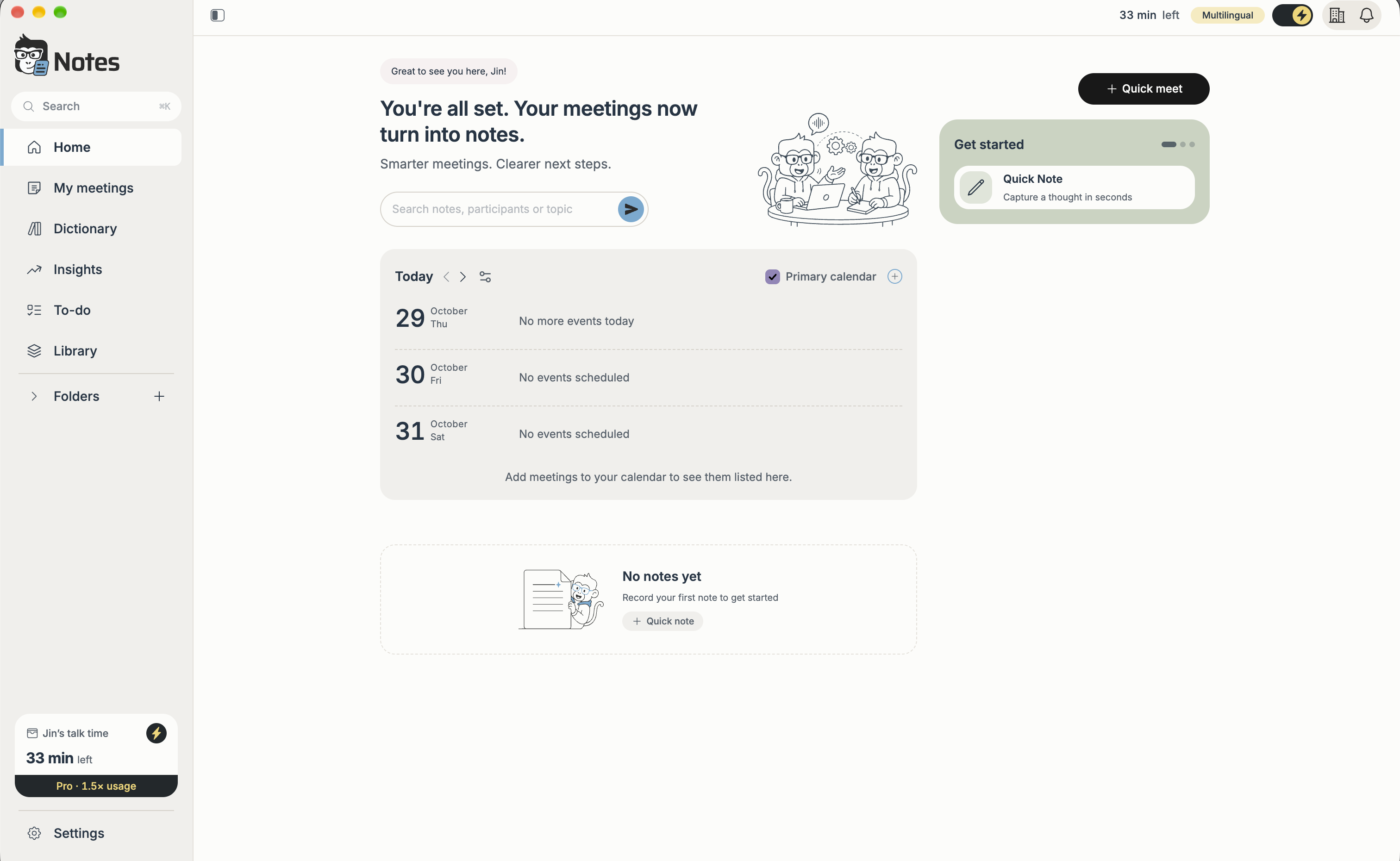
The Home screen is the first thing you see when you open Lungoor Notes. It shows your upcoming meetings, your recent notes and a quick way to start recording - everything you need before your next meeting.
Welcome Banner
At the top of the Home screen you'll see a greeting with your name, followed by:
You're all set. Your meetings now turn into notes.
Smarter meetings. Clearer next steps.
Below the banner is a search box. Type a note title, a participant's name or a topic to find a past meeting.
Quick Meet
Click Quick meet in the top right to start a new note and begin recording straight away. It's handy for calls that aren't on your calendar.
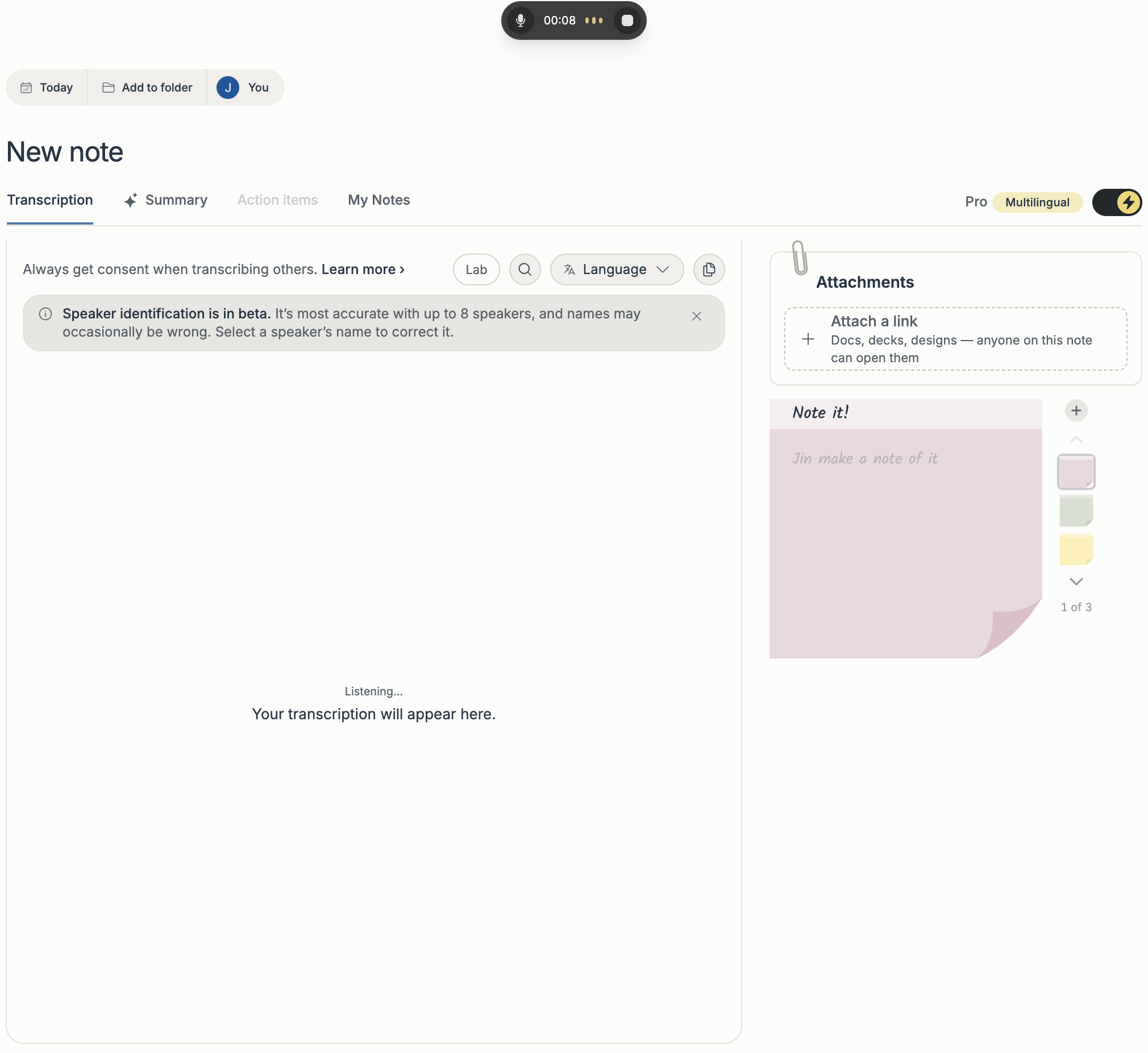
Once recording starts, you'll see:
- Recording bar - at the top of the screen, with a timer and a stop button
- Transcription, Summary, Action items and My Notes - a tab for each part of your note
- Today, Add to folder and You - the date, the folder and the people in the note
- Attachments - add links to docs, decks or designs that anyone on the note can open
- Note it! - sticky notes for jotting your own thoughts during the meeting
Always get consent when transcribing others.
Speaker identification is in beta. It works best with up to 8 speakers, and names may sometimes be wrong. Select a speaker's name to correct it.
Your Calendar
The calendar card shows your meetings for today and the next two days.
- Arrows - move back and forward between days
- Calendar accounts - each connected Google Calendar has its own tick box and colour. Untick one to hide its meetings
- Plus button - connect another Google Calendar
If you have nothing coming up, you'll see "No events scheduled". Add meetings to your Google Calendar and they'll show up here.
To record a calendar meeting, select it and click Meeting note. Recording starts automatically.
Recent Notes
Below the calendar, your notes appear grouped by day - for example, Yesterday or Tue, Oct 27. Each note shows its title, the time it was recorded and who was in it.
When you first open Lungoor Notes, this section is empty and says "No notes yet". Click Quick note to record your first note.
Side Card
On the right side of the Home screen, below Quick meet, you'll see one of these cards:
- Get started - short tips for new users, like Explore templates. Use the dots to see more tips
- Latest note - the title, date, tags and key points from one of your recent notes
Your Talk Time
In the bottom left corner, your talk time card shows:
- Your talk time left - for example, 33 min left
- Your current mode and how fast it uses talk time - for example, Pro at 1.5x usage
This is the same talk time balance you use in Lungoor Voice. It updates as you record.
Sidebar Navigation
On the left side of the screen, the sidebar gives you quick access to every section:
- Search - find anything in Lungoor Notes. You can also press ⌘ K
- Home - your main dashboard and starting point
- My meetings - all your recorded meetings and notes
- Dictionary - add names and words so your transcripts spell them right
- Insights - see your meeting habits and usage at a glance
- To-do - action items from your meetings, with a count of what's still open
- Library - your Summary templates, which shape how the AI lays out your notes, and your Chat prompts
- Folders - organise your notes. Click + to create a new folder
- Settings - manage your calendar, connectors, permissions, account and more
Top Right Corner
In the top right you'll see:
- Your talk time - the minutes you have left, for example 33 min left
- Language - the language Lungoor listens for. It shows English only in Basic and Multilingual in Pro
- Mode toggle - switch between Basic (free) and Pro mode
- People - the building icon. Everyone from your recorded meetings gets a page showing when you last met, what you talked about and where they work
- Notifications - the bell icon. Access requests and important updates show up here
Tips
- Use Quick meet for calls that aren't on your calendar
- Connect all your work calendars so every meeting shows up on Home
- Keep an eye on your talk time - it's shared with Lungoor Voice
- Switch to Pro when you need higher accuracy or a language other than English