Folders
Group your meeting notes by topic.
Overview
As your meeting archive grows, keeping things organized is key. Folders let you group meeting notes by customer, initiative, or team. This allows you to browse and review historical discussions based on topic rather than sorting through a long, chronological list.
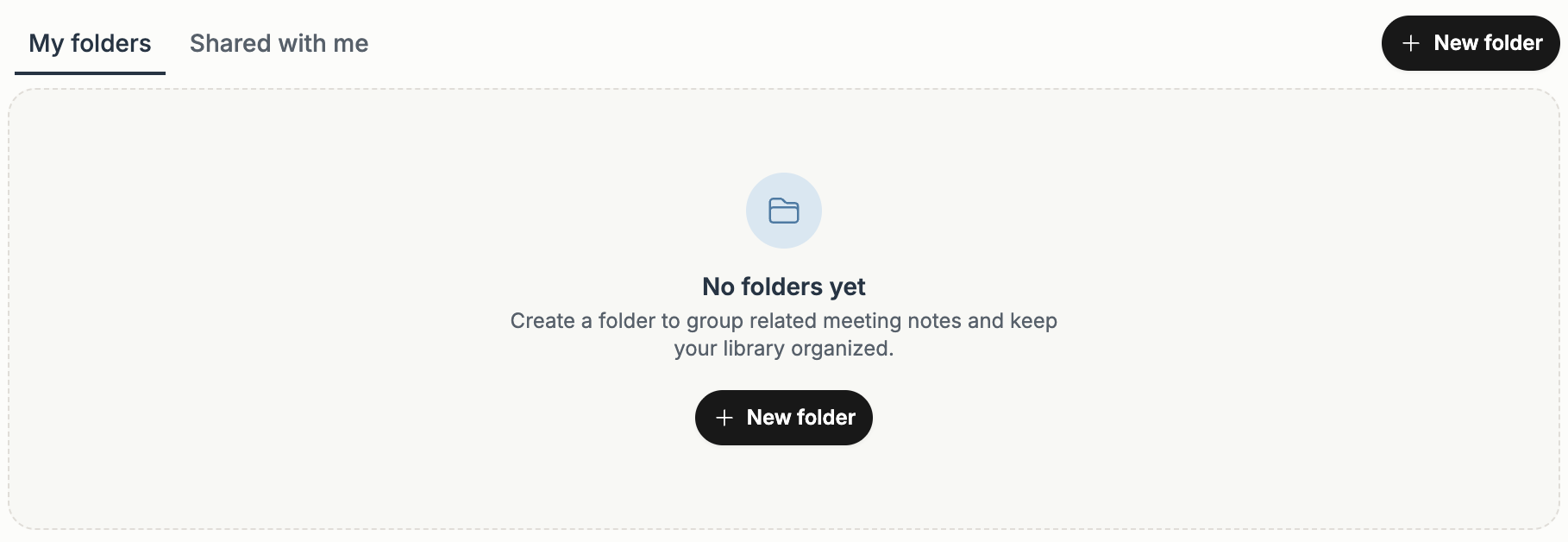
Open Folders from the sidebar. The page has two tabs:
- My folders - folders you've created
- Shared with me - folders other people have shared with you
When you haven't made any folders yet, you'll see "No folders yet".
Creating and Managing Folders
You can manage your folder structure in a few clicks:
1. Click New folder
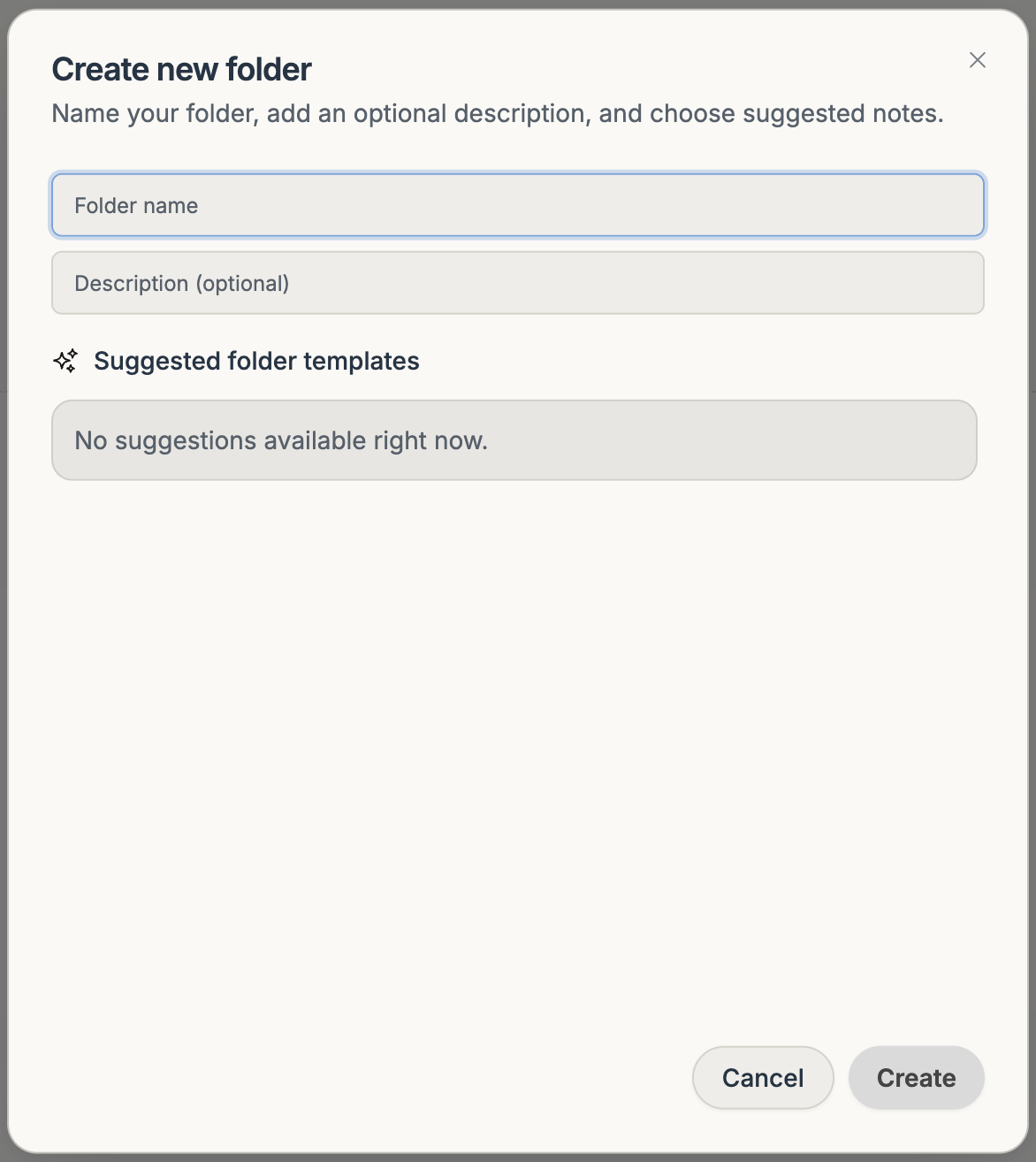
You'll find it in the top right of the Folders page. You can also click + next to Folders in the sidebar. The Create new folder window opens.
2. Name your folder
Give it a descriptive name. You can also add a description, but it's optional.
3. Choose suggested notes
Under Suggested folder templates, pick any suggestions you want. If there aren't any, you'll see "No suggestions available right now".
4. Click Create
Your new folder appears in My folders. Click Cancel to close without creating it.
5. Link meetings
Link meetings directly from your list or detail views. In My meetings, click the three dots next to a note and choose Add to folder. Inside a note, click Add to folder at the top.
Smart Recommendations
To save you time, Lungoor Notes can analyze your meetings and suggest relevant folders to link them to, or even propose entirely new folder themes based on your discussion patterns. You always retain complete control over which meetings get linked.
Tips
Check the sidebar regularly for automated folder recommendations, which can help clean up a cluttered workspace without manual sorting.