Permissions
Give Lungoor Notes the access it needs to record your meetings.
Overview
To capture clear meeting audio and transcribe it in real time, Lungoor Notes relies on macOS system permissions. Since microphone and system audio streaming depend on security frameworks, you'll need to configure these settings on your Mac.
To check your permissions, go to Settings and click Permissions under App. Each permission shows Allowed once it's turned on.
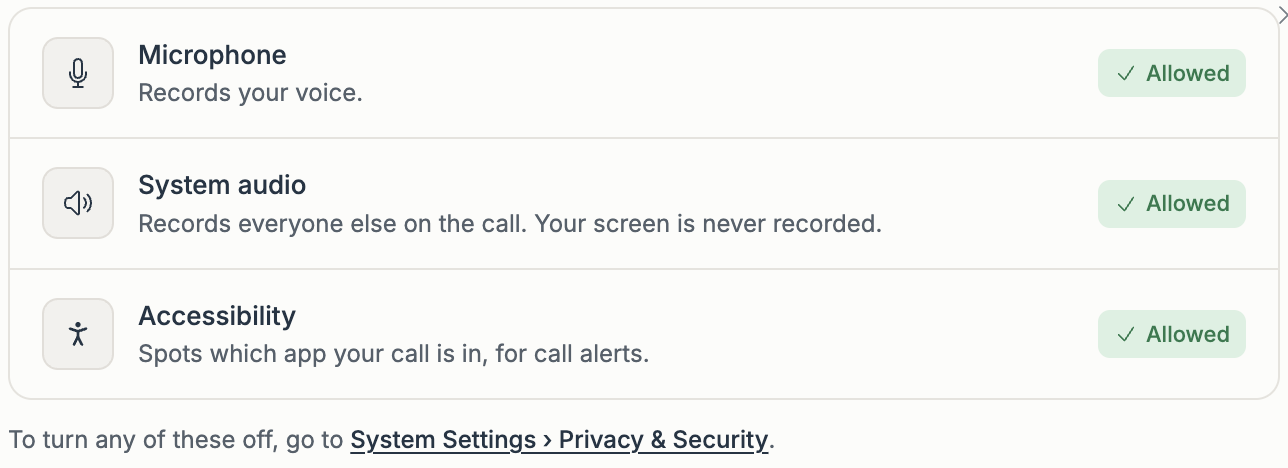
macOS Privacy Settings
The app uses three permissions:
Microphone Access
Records your voice. The app needs microphone permissions to capture your own voice. If you didn't grant access when prompted on first run, open System Settings, navigate to Privacy & Security, select Microphone, and enable Lungoor Notes.
System Audio
Records everyone else on the call. Your screen is never recorded.
To capture system or meeting audio from remote participants, you need to enable loopback recording. On recent macOS versions, this may require enabling both Screen and System Audio Recording, or System Audio Recording Only. These settings allow the app to capture sound directly from your meeting applications or browser tabs.
Accessibility
Spots which app your call is in, for call alerts.
Turning Permissions Off
To turn any of these off, go to System Settings - Privacy & Security on your Mac.
Applying Changes
After you toggle any privacy settings in macOS System Settings, you must completely quit the app and open it again. This ensures that the CoreAudio and TCC subsystems recognize the updated permissions.
Troubleshooting Silent Audio
If you notice that your captured files are silent or missing meeting audio, try these steps:
- Confirm that both microphone and system audio permissions show Allowed in Settings - Permissions.
- Fully quit and restart the app.
If you're still stuck, reach out to our team at [email protected].
Tips
Always use the Cmd+Q shortcut to fully close Lungoor Notes after updating macOS permissions, otherwise your Mac's audio system won't apply the changes.